
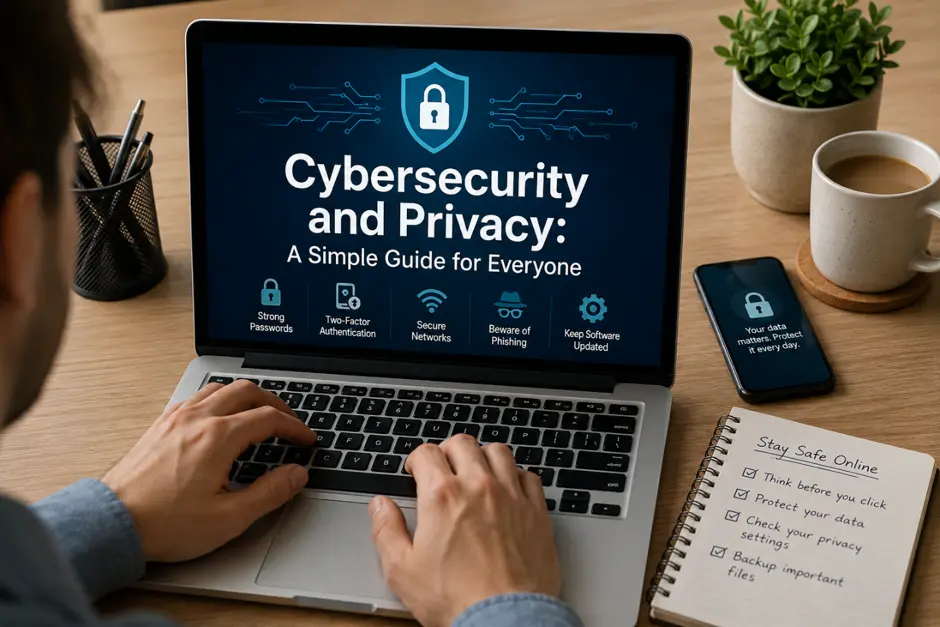
Cybersecurity and Privacy: A Simple Guide for Everyone
Last spring, a mom in Tulsa got a strange text. It said her package couldn’t be delivered. She needed to click a link and re-enter her address. She almost did it. Then she spotted a typo in the company name. That one thing saved her.
This happens to regular people all the time. Cybersecurity and privacy yeah, they sound like complicated tech stuff. But they’re really not. Cybersecurity is mostly just keeping strangers out of your stuff — accounts, phone, laptop, whatever. Privacy is the flip side: being careful about what you hand over before someone has the chance to misuse it. You don’t need to be techy for either one. Common sense gets you most of the way there.
This guide keeps it plain and simple. Just things you can actually do today, whether you’re watching out for yourself, a parent, or a kid.
What Cybersecurity and Privacy Actually Mean
Cybersecurity is basically a lock on your front door. It keeps people out of places they don’t belong. Privacy is a different thing.
Even when nobody breaks in, you might still be giving away more than you want. An old Facebook post might have your home address on it. Some app on your phone might be quietly following your location without you ever realizing it.
You need both. One keeps intruders out. The other stops you from accidentally handing over too much.
Here’s something that actually happened. A teenage girl in Phoenix posted a photo from her bedroom window. Someone on the internet figured out her school just from a building in the background. No hacking. No breach. She just overshared without knowing it. That’s a privacy problem, not a security one. But either kind can really hurt you.
Picture your house. Cybersecurity is the lock, the alarm, the cameras. Privacy is keeping your curtains shut at night. A strong lock won’t help much if people walking past can see straight through your windows.
Internet Safety Basics Everyone Should Know
Most online safety really comes down to a handful of habits. Stick to these and you’re already doing better than most people.
One: different password for every account that actually matters. Crack one site, and a hacker shouldn’t be able to waltz into everything else you’ve got just because you got lazy and reused “Summer2019!” everywhere. A password manager remembers all of it so you don’t have to.
Two: update your phone and computer when they ask you to. Yeah, the popup always shows up at the worst time. Do it anyway — most updates are patching holes that hackers already know about
Three: slow down before you click anything. Scammers need you to panic fast. A message saying “act now or lose your account” is a trick, not a real emergency. Actual companies don’t send messages like that.
Four: back your files up somewhere safe Ransomware locks up your computer, and suddenly you’re staring at a countdown timer and a demand for crypto. Have a backup, and you shrug and wipe the machine — no payment, no negotiating with whoever did this. Skip the backup, and you’re the one googling “is it safe to pay ransomware” at 2am, weighing whether ten years of photos are worth three hundred bucks to a stranger. Her computer got locked by ransomware. She had backed everything up the week before, almost by accident. She lost one day of work. Her customers’ records were completely fine. That backup saved her whole business.
Five: lock your screen even at home. Doesn’t matter if you’re just stepping away to grab a coffee thirty seconds is all a nosy sibling or houseguest needs to glance at a text or an open email.
Six: log out on shared computers. Libraries, hotels, anywhere public, same rule whoever sits down after you shouldn’t just pick up where you left off..
None of this costs anything and none of it takes more than a few seconds. Security people keep repeating the same five things over and over because, annoyingly, they’re right. These are the boring habits that actually stop the attacks most people run into.
Here’s one a lot of people skip: change the default password on your home Wi-Fi router. Loads of routers ship with the same password printed on a sticker, on thousands of identical units. Swap yours out five minutes, tops and you’ve shut the door on one of the laziest ways someone gets onto your network.
What Is Phishing and How Do You Catch It?
Phishing is just someone pretending to be your bank, your boss, or Amazon — anyone you’d normally trust without thinking twice. Click the link, and you’re either handing over your password or installing something you really didn’t mean to
The name comes from actual fishing; they toss out bait and wait.
The message almost looks right, but something feels off. Maybe the logo is slightly blurry. Maybe the email reads “amaz0n.com” with a zero where the O goes. And it almost always tries to rush you. Locked account.
Missed package. Anything to keep you from pausing and actually thinking about what you’re doing. If a message wants you to click a link and type in your password right then and there don’t. Close it, open the site yourself, log in the normal way.
Open your browser yourself and head straight to the real website. Any actual problem with your account will be right there waiting for you.
Phone calls and texts get used for phishing too. A retired man in Tampa got a call from someone pretending to be his bank, asking him to read back his account number. His real bank would never ask for that. He hung up and called the number on the back of his card. Smart move.
Text phishing is called smishing. Phone call phishing goes by vishing. The names sound different but the con is identical every time. Someone acts trustworthy, drums up urgency, and pushes you to respond before your brain catches up. Waiting ten seconds is usually all it takes to see through it.
Two-Factor Authentication: A Second Lock
Your password is one lock on your account. Two-factor authentication puts a second one right behind it.
After you log in, the account asks for one more proof that it’s really you. Maybe a code shows up on your phone. Maybe you tap a button in an app. Some accounts just scan your fingerprint.
Why does this matter? Password leaks happen all the time. You often don’t find out about them for months. But if someone grabs your password and still doesn’t have your phone, they’re stuck right there. That’s the whole point.
Setting it up takes about two minutes per account. Check the security settings on your email, your bank app, your social media. Most services offer it for free. Nearly every security expert out there calls it the single most useful thing a regular person can actually do.
Somebody’s email password got scooped up in a breach she never even knew happened. Doesn’t matter, though — she’d already turned on two-factor, so the hacker hit a wall and gave up. She only found out at all because she was bored one night and ran her email through one of those breach-checker sites. Her account had never been touched.
You can receive the second code by text or through an authenticator app. The app is slightly more reliable since texts can occasionally be intercepted on older phone networks. Either way, when you first set it up, save the backup codes the service gives you. Lose your phone and those codes are your way back in.
How to Keep Your Personal Info Safe Online
Your personal information is a lot more than just your password. It’s your birthday, your home address, your phone number. It’s also smaller stuff, like your first pet’s name or what street you grew up on. Those little details end up as security questions answered way more often than people think.
Try searching your own name online sometime. What comes up might genuinely surprise you. Old forum accounts, public records, people-search websites. Many of those sites will pull your info down if you ask them, though the process can drag on a bit.
Be careful with those fun social media quizzes. “What was your first car?” and “What street did you grow up on?” sound like harmless games. They’re often the exact same questions banks use to verify who you are. Someone putting together a profile on you could collect all those answers from a quick five-minute quiz.
Shred paper mail that has account numbers on it before throwing it out. Digital attacks get most of the attention, but someone going through your trash is still one of the oldest tricks in identity theft.
Check your bank and credit card statements every month. Small weird charges you don’t recognize are usually the first sign something’s wrong. Catching it early makes the whole mess a lot easier to sort out.
Guard your Social Security number like a spare key to your house. A doctor’s office or a government agency might genuinely need it. A website running a free quiz almost certainly doesn’t. Just ask why before you hand it over.
If you have kids, their information matters too. They can’t check their own credit for years, which is exactly why some identity thieves target children specifically. Don’t post their full names together with school names or birthdates in public posts.
Social Media Privacy Settings Worth Checking Right Now
Most social media apps share more than people realize by default. Spending five minutes in your settings takes care of most of it.
Start by setting your profile to private. Public means literally anyone on the internet can see your posts, including people who aren’t exactly fans.
Turn off location tagging on photos. Many apps automatically record exactly where a picture was taken. Post a vacation photo with the location tag still on, and you’ve basically mailed every stranger online a note that says “nobody’s home.” Same goes for the smaller stuff people forget about who can see your friend list, your birthday, your phone number. None of it looks dangerous sitting there by itself. Together they give a stranger enough to guess your passwords or convincingly pretend to be you.
Go through which old apps and games are still connected to your account Old apps you downloaded years ago and forgot about? A lot of them still have access to your profile. Go clear out anything you haven’t actually used in months.
Tagging is the sneaky one. Your friend tags you at a restaurant. Your kid’s school posts photos with the building name clearly visible in the background. None of it seems like much by itself, but string enough of these together and a stranger can build a rough timeline of where you actually are, day to day.
Same logic applies to vacation photos post them while you’re still away and you’re basically telling whoever’s watching that the house is empty. Costs you nothing to just wait a few days and post them once you’re back.
Privacy as a Daily Habit, Not a One-Time Setting
Think of it less like a setting and more like locking your car every time, even in your own driveway, even when you’re just running inside for thirty seconds. It’s tedious. That’s kind of the point. The habit only works because you don’t skip it.
Same idea applies to your browser. Most of them now have tracking protection built in, usually buried under a name like “enhanced tracking protection” turn it on and stop thinking about it.
.” It’s one click.
Go easy on public Wi-Fi for anything that matters, especially banking or passwords. Coffee shops and airports are way easier for nearby strangers to listen in on compared to your home connection. If you have to use one, hold off on anything financial until you’re back somewhere you trust.
Before tapping “allow” on any app permission, think about whether it actually makes sense. A flashlight app has no reason to touch your contacts. A simple game doesn’t need your exact location. Saying no to stuff that doesn’t make sense costs you nothing.
Talk to your kids and your parents about all of this. Scammers go after whoever is least likely to question something that seems a little off. One quick conversation now can save a lot of pain later.
Clear your cookies and browsing history every now and then, especially on shared computers. Cookies are small files websites drop to track you. Most are harmless on their own, but over time they build up a surprisingly detailed picture of where you’ve been online.
Don’t forget your smart home stuff either. Doorbell camera, smart speaker, baby monitor they’re all just sitting on your Wi-Fi same as your phone is. Change the default password the day you set each one up, not “eventually.” Most people never get around to it, and that’s exactly how a stranger ends up watching your front porch or listening in on your kid’s room.
Nobody needs to be paranoid about their gadgets over this. You just get to the point where changing the password is automatic like buckling a seatbelt before you’ve even registered you’re doing it.
A Quick Checklist
Short on time? Do these five things and you’ve covered most of what actually matters:
Turn on two-factor authentication for your email and your bank, first and foremost those are the two accounts you really can’t afford to lose. Use a different password everywhere it counts. Set your social media to private and kill location tagging. Pause before clicking anything that’s trying to rush you. And change the default password on every smart home gadget the day you plug it in.
Frequently Asked Question
Cybersecurity is about keeping people from breaking into your stuff. Privacy is about what you hand over voluntarily, even to people who’d never dream of hacking you. They overlap, but neither one covers the other.
Unique passwords, two-factor authentication, and updates you don’t ignore that covers most of the cybersecurity side. Then go dig through the privacy settings on your phone and whatever social apps you actually use — most of them default to sharing your location, your contacts, your activity, way more than people realize until they actually look.
Yes, especially for banking or passwords. Public networks are much easier for nearby strangers to snoop on compared to your home connection. A coffee shop network was never set up with your security in mind. Hold anything sensitive until you’re back on a network you actually trust.
Password manager, plus a different password for every single account. Stack two-factor on top of that and you’ve basically closed off the way most people actually lose access to their own stuff someone guessing or reusing a leaked password, not some elaborate hack.
Yeah, especially if you’re on Windows. Built-in protection has gotten decent, but it’s not the whole picture antivirus is what catches what slips past it. Just don’t let it sit there disabled or out of date because it’s annoying, since that’s usually exactly when something gets through.

Author: admin_techblog
Discover more from Premium Tech Blog
Subscribe to get the latest posts sent to your email.